
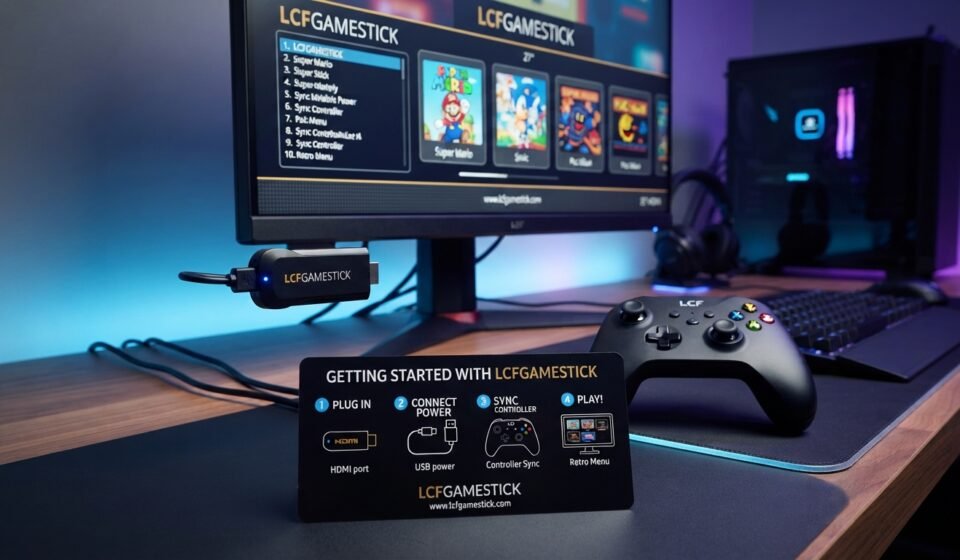

You have unboxed your game stick, and the box has no clear manual. That is a common problem with compact retro consoles. These instructions for lcfgamestick walk you through setup, from plugging the stick into your TV to pairing the controllers and fixing common problems.
A quick note on accuracy: I could not find an official manual published for this exact product name. The steps below follow how nearly all HDMI plug-and-play game sticks work. If a printed leaflet came in your box, its details come first, because menus and button layouts can differ slightly between versions.
What Is the lcfgamestick?
The lcfgamestick is a small plug-in gaming device that connects to your TV through an HDMI port. Sticks like this usually come with built-in retro games and two wireless controllers. You do not need a separate console or a computer.
Most game sticks of this type use an emulator-based system that runs classic titles from older consoles. That is why the menu often looks simple. The device is made for quick, casual play on a TV.
What’s in the Box?
Check the contents before you start. A typical game stick package includes:
- The game stick itself
- Two wireless controllers
- A USB receiver (often called a 2.4G dongle) for the controllers
- A USB power cable
- An HDMI extender cable (in some packs)
- A printed leaflet or a quick-start card
If anything is missing, particularly the receiver or the power cable, contact the seller before you continue. The stick will not work properly without power, and the controllers will not connect without their receiver.
Instructions for lcfgamestick: Step-by-Step Setup
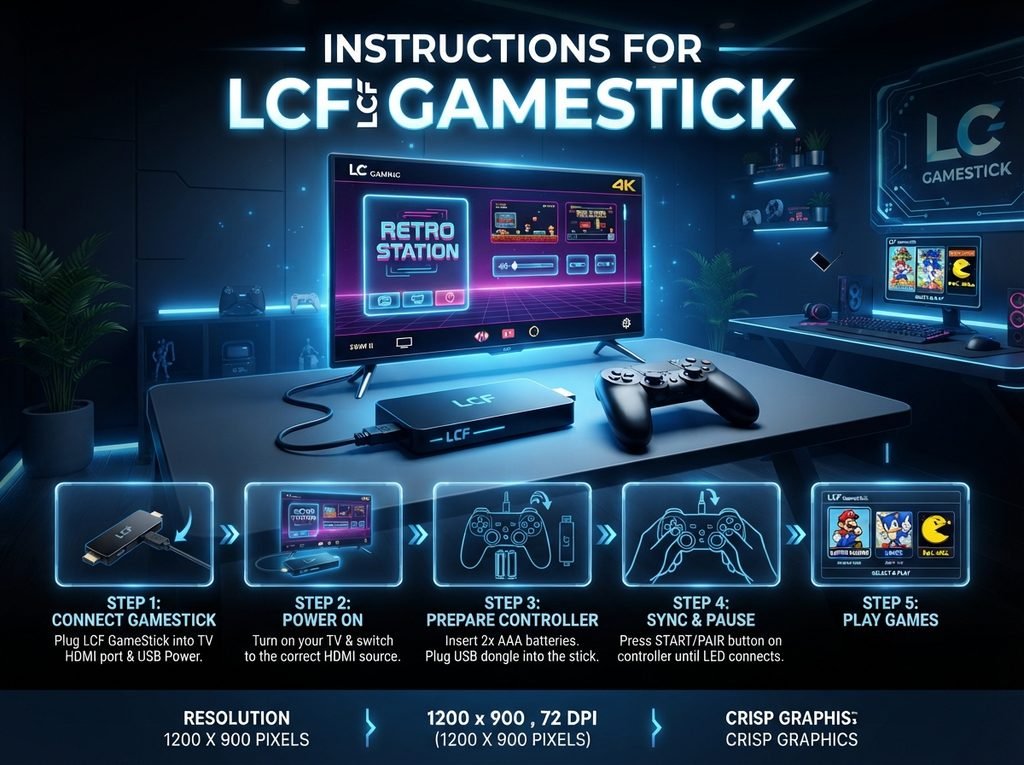
Follow the order below for the smoothest game stick setup.
Step 1: Plug the stick into your TV
Find a free HDMI port on the back or side of your TV. Plug the game stick in directly. If the stick is too wide or the TV ports are close together, use the HDMI extender cable if one came with your pack. This also helps improve Wi-Fi or controller signal on some models.
Step 2: Connect the power
Most sticks need a separate power source. Connect the USB cable to the stick, then plug the other end into a wall adapter. A phone charger rated at 5V works for most devices.
You can sometimes power the stick from the TV’s USB port. That often fails because many TV ports do not supply enough current, and the result is a flickering screen or constant restarts. A wall adapter is the safer choice.
Step 3: Insert the controller receiver
Plug the 2.4G USB receiver into the stick’s USB port, or into the port shown in your leaflet. Many sticks also have a spot to store the receiver when you are not playing.
Step 4: Switch the TV to the right HDMI input
Use your TV remote and press Input or Source. Select the HDMI port where you plugged in the stick. After a few seconds, the game menu or a logo should appear.
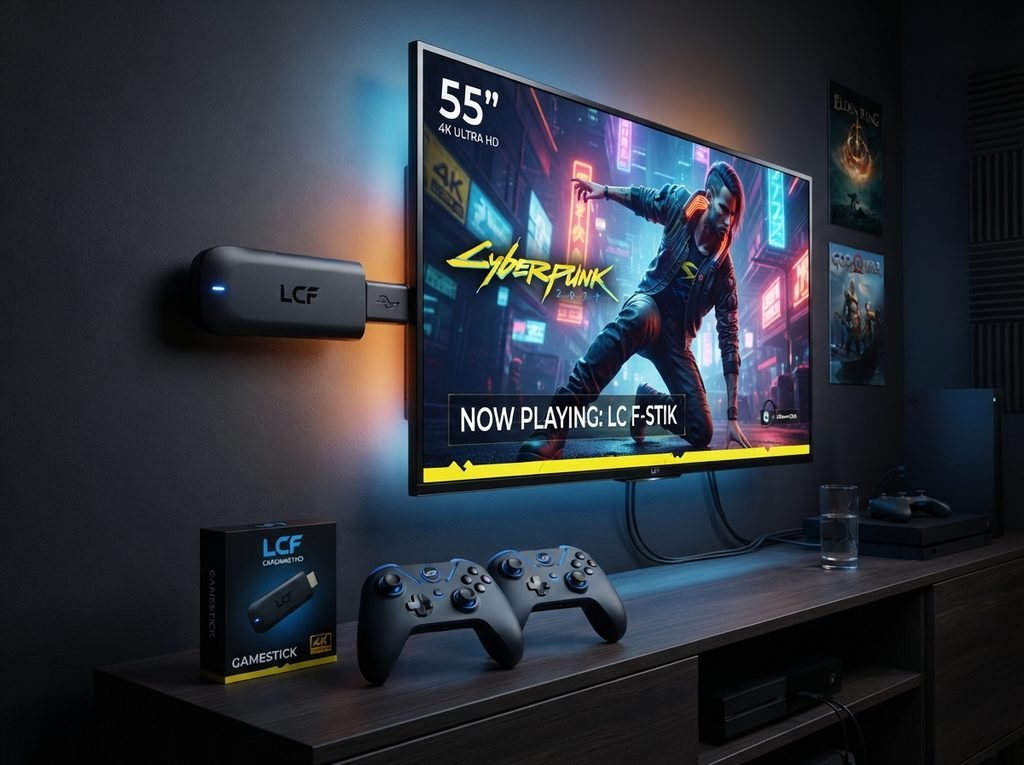
Step 5: Choose your first game
Use the controller to move through the menu. Pick a game, press the start or confirm button, and the game will load. If you are a first-time user, it helps to try one game before you change any settings.
How to Pair the Wireless Controllers
Pairing is where most beginners get stuck. Game stick controller pairing usually follows this general process:
- Put fresh batteries (usually AAA) in each controller, checking the plus and minus ends.
- Make sure the receiver is firmly connected and the stick is powered on.
- Turn the controller on, if it has a switch.
- Press the pairing or sync button, if there is one. On some models, you press Start or a specific button combination instead.
- Watch for a flashing light on the controller. A steady light usually means it has connected.
If the stick supports two players, pair the first controller first, then the second. Pairing both at once can sometimes cause a conflict.
How to Connect the Game Stick to a TV: Common Questions
What do I do if I see “No Signal”?
“No signal” means the TV is not getting a picture from the stick. Check that the stick has power, the HDMI input is correct, and the stick is fully plugged in. Wait up to 30 seconds, since some sticks take time to boot.
Does the lcfgamestick need Wi-Fi?
For most plug-and-play game sticks, no. Built-in games usually run offline. If your version includes an app store or an update feature, it will ask you to connect to a network, but this is not needed for basic play.
Can I use it on an older TV?
You need an HDMI port. Older TVs that only have composite (red, white and yellow) connections will not work unless you add an HDMI-to-AV converter. These converters are cheap, but picture quality can drop.
Basic Controls and Menu Tips
Controls vary, but most retro game sticks follow a familiar layout. Direction buttons move the character or the menu cursor. The A and B buttons act as jump, attack or confirm. Start begins the game or opens the pause menu. Select is often used to add a coin or switch modes.
Many menus also include a favorites list, a search function and a “recently played” section. Use favorites if the game library is large. It saves time when you want to get back to the same few titles.
Can You Save Your Progress?
Many game sticks support save states or in-game saves, but it depends on the software. Look for a pause menu with options such as Save, Load or Reset. If you do not see them, the game may only support its original save system, or none at all.
Do not rely on saved data until you have tested it. Save, exit the game, reopen it and try loading. This simple test avoids lost progress later.
Troubleshooting: Why Your Game Stick Is Not Working
Here are the most common problems and the quickest fixes.
| Problem | Likely cause | Fix |
|---|---|---|
| No picture | Wrong HDMI input or no power | Select the correct input and use a wall adapter |
| Stick keeps restarting | Weak power supply | Use a 5V phone charger instead of the TV USB port |
| Controller not responding | Dead batteries or lost pairing | Replace batteries, re-pair, and check the receiver |
| Laggy controls | Interference or distance | Move closer, use the receiver extension, and avoid Wi-Fi routers nearby |
| Sound but no picture | Incorrect screen setting | Try another HDMI port or change the TV’s picture mode |
| Game freezes | Overheating or a poor file | Allow the stick to cool, restart, and try a different game |
The controller is connected but the buttons feel wrong
Some sticks have a button mapping option in the settings menu. Look for a Controller or Input section. If your version has it, you can reassign the buttons to match your preferred layout.
The picture looks stretched or cut off
Open your TV’s picture settings and look for an aspect ratio option. Choose “Just Scan,” “Screen Fit” or “Original,” depending on your TV brand. This often fixes cropped edges on retro games.
Can You Add More Games?
This depends on your specific stick. Some models are locked and only play the built-in titles. Others support extra games from a memory card or USB drive.
If you do add games, only use game files you own legally. Downloading unlicensed copies can break copyright law in many countries, and unknown files can also contain malware. Check your leaflet or seller page before attempting any changes, since the wrong action can stop the device from booting.
Care and Safety Tips
A few small habits keep your game stick running well:
- Keep the stick in a ventilated area, because blocked airflow causes overheating.
- Do not pull the stick out of the TV while a game is running.
- Remove batteries from the controllers if you will not use them for weeks.
- Use a quality power adapter, since cheap chargers can cause crashes.
- Store the receiver where it will not get lost.
Is the lcfgamestick Worth Using?
For casual retro gaming, a game stick is an inexpensive way to play classic titles. The experience is simple and works well for families. If you want modern games, online play or a large library, a regular console or a streaming device will serve you better.
FAQS
How do I turn on the lcfgamestick?
Plug it into your TV’s HDMI port and connect it to power. The stick starts automatically. Then switch your TV to the correct HDMI input.
How do I connect the controllers to the lcfgamestick?
Insert batteries, plug in the 2.4G receiver, power on the stick and press the pairing or sync button on the controller. A steady light usually shows it is connected.
Why does my game stick say “No Signal”?
The most common causes are the wrong HDMI input, a loose connection or low power. Use a wall adapter and give the stick time to start.
Can I play two-player games?
Most sticks with two controllers support two-player games, but only for titles that offer a multiplayer mode. Pair the first controller before the second.
Does it work without Wi-Fi?
Yes, in most cases. Built-in games normally run offline.
How can I reset the game stick?
Look for a Reset or Restore option in the settings menu. If none exists, disconnect the power for about 30 seconds and reconnect it. This restarts the device but does not erase saved data.
Conclusion
Once you know the basics, these instructions for lcfgamestick come down to four things: stable power, the right HDMI input, fresh controller batteries and a properly connected receiver. Most setup problems come from one of those four.
If something still does not work, go back through the table above and test one fix at a time. For model-specific details such as button shortcuts or special menus, check the leaflet in the box or contact the seller, since layouts can vary between versions.