
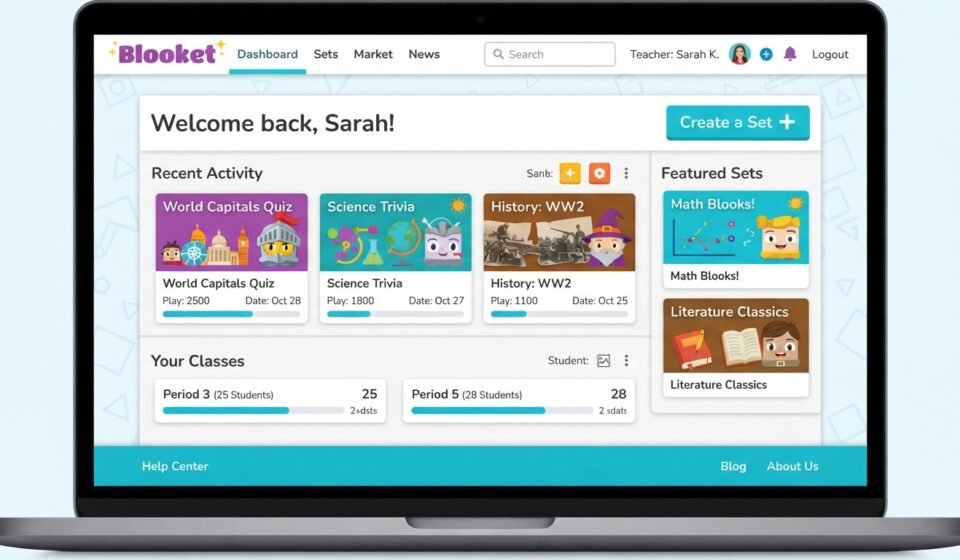

If you use Blooket in class, the Blooket dashboard is where everything starts. It is the home screen you see after logging in, and from it you can create question sets, host live games, assign homework, check your stats, and customize your account.
Many new users open the dashboard and are not sure where to click first. This guide explains each part of the Blooket dashboard in plain English, so you can find what you need quickly and get more from the platform.
What Is the Blooket Dashboard?
The Blooket dashboard is your personal control panel on Blooket, a game-based learning platform. Teachers use it to build and host quiz-style games, while students use it to browse sets, track progress, and manage their collection of characters called Blooks.
Think of the Blooket dashboard as a hub. Instead of jumping between pages, you reach your sets, your game history, and your account settings from one place. The layout is simple, which is why most people learn it within a few minutes.
How to Log In to the Blooket Dashboard
Getting into the Blooket dashboard is quick. Here is the usual process:
- Go to the official Blooket website in your browser.
- Click Log In (or Sign Up if you are new).
- Sign in with your email and password, or use a Google account if that option is available.
- After logging in, you will land on your Blooket dashboard.
If you are creating a new account, you will be asked to choose a username and may be asked whether you are a teacher or a student. Choose carefully, since a teacher account gives you hosting and reporting tools.
Tip: Always use the official Blooket address. Fake login pages exist online, and they can steal passwords.
Do You Need an Account to Play?
No. This is a common search question, and the answer is simple. Students can join a live game without logging in by entering a join code and a nickname on the Blooket join page. However, an account gives access to the full Blooket dashboard, including saved progress, stats, and the market.
Main Sections of the Blooket Dashboard
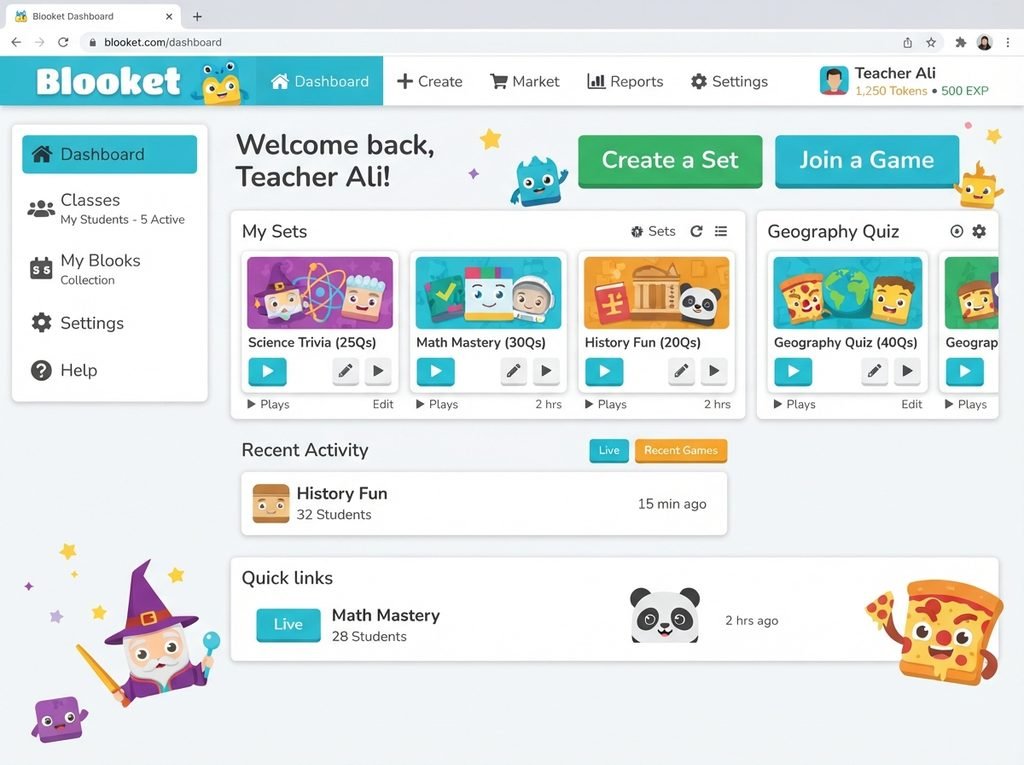
The exact layout can change as Blooket updates its design, but the Blooket dashboard generally includes the following areas.
Discover
The Discover page lets you browse public question sets made by other users. You can search by subject, grade level, or topic, such as fractions, vocabulary, or world history. For teachers short on time, this is often the fastest way to find a ready-made set.
My Sets and Create
This is the core of the Blooket dashboard for teachers. Under My Sets, you will find every set you have created or saved. The Create option lets you build a new one.
When you create a Blooket set, you can:
- Add a title, description, and cover image
- Write multiple-choice questions with several answer options
- Set a time limit for each question
- Add images to questions
- Import questions in bulk instead of typing each one
Bulk import is helpful when you already have questions in a spreadsheet or another study tool.
Favorites
When you find a set you like, you can favorite it. The Favorites section keeps those sets together so you do not need to search for them again.
Stats
The Stats area of the Blooket dashboard shows your activity. Depending on your account, you may see games played, questions answered, and accuracy. Teachers who host games can also review results afterward to see which questions caused the most trouble.
Market and Blooks
Students enjoy this section the most. As you play, you earn tokens. In the Blooket market, you can spend those tokens on packs and unlock Blooks, which are collectible characters you can use as your avatar in games.
The market is purely for fun and does not change the questions or the learning content.
Settings
Here you can update your username, password, email, and other account details. Teachers can also manage preferences related to their classroom use.
How to Host a Game From the Blooket Dashboard
Hosting is the feature most teachers want to learn first. The process is straightforward:
- Open your Blooket dashboard and choose a set from My Sets or Discover.
- Click the Host button.
- Pick a game mode.
- Adjust the settings, such as time limit or player limit.
- Start the game and share the join code with students.
- Students enter the code, choose a nickname, and wait in the lobby.
- Launch the game when everyone is ready.
Which Blooket Game Mode Should You Choose?
Blooket offers many game modes, and the available list can change over time. Some are fast and competitive, while others are more strategic. A few popular examples include Gold Quest, Tower Defense, Cafe, and Battle Royale.
A simple way to choose:
| Goal | Good Choice |
|---|---|
| Quick review before a test | Fast-paced modes with short rounds |
| Team activity | Modes that support teams |
| Longer practice session | Strategy-style modes |
| Independent practice | Homework mode |
Try different modes. Students often stay more engaged when the format changes from week to week.
How to Assign Homework From the Blooket Dashboard
Not every activity has to happen live. The Blooket dashboard also lets teachers assign a set as homework, so students can practice on their own schedule.
When you select the homework option, you can usually set a due date and choose how the game should run. Students then join using a code or link and complete it at home. Teachers can check results afterward to see who participated and how they performed.
This is useful for review work, vocabulary practice, and flipped classroom activities.
How to Read Your Results and Stats
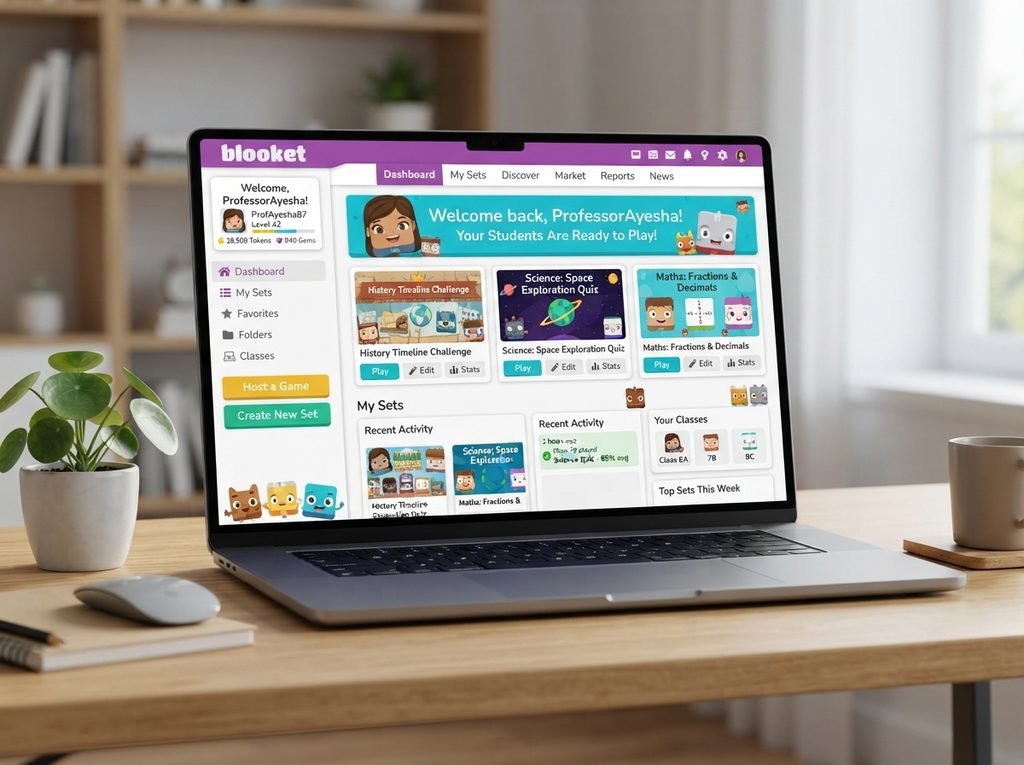
Understanding results is what turns Blooket from a fun activity into a teaching tool. After a game, look at the results from your Blooket dashboard and ask:
- Which questions had the lowest accuracy?
- Which students may need extra help?
- Did the class improve compared with the last game?
If many students miss the same question, that topic probably needs a quick re-teach. Over time, these stats help you adjust your lessons based on real data rather than guesses.
Blooket Dashboard for Students: What Can You Do?
Students may not host games, but the Blooket dashboard still offers a lot:
- Join and play games
- Explore public sets for self-study
- Earn tokens and unlock Blooks
- Check personal stats
- Save favorite sets
Students can also use the dashboard to make their own study sets, which is a good way to learn. Writing a question forces you to understand the answer.
Blooket Dashboard Not Loading? Common Problems and Fixes
Sometimes the Blooket dashboard will not load or log in properly. Try these steps in order:
- Refresh the page and try again.
- Check your internet connection, especially on school Wi-Fi.
- Clear your browser cache and cookies.
- Try another browser such as Chrome, Edge, or Firefox.
- Disable extensions that may block scripts.
- Reset your password if login keeps failing.
- Ask your school IT team, since some schools restrict certain websites.
If the problem continues, check whether Blooket is experiencing a temporary outage or contact Blooket support through its official website.
Tips to Get More From Your Blooket Dashboard
- Organize your sets. Use clear titles like “Grade 6 Science – Photosynthesis” so you can find them later.
- Keep questions short. Long questions slow the game down.
- Mix easy and hard questions. This keeps every student involved.
- Review stats after every game. Small adjustments add up.
- Use homework mode for practice. Save live games for energy and review.
- Stay safe. Never share your password, and remind students to use appropriate nicknames.
Is Blooket Free? What About Blooket Plus?
Blooket offers a free version with a large set of features. There is also a paid option, often called Blooket Plus, that adds extra tools and perks. Features and prices can change, so check the official Blooket website for current details before deciding whether you need an upgrade. For many classrooms, the free Blooket dashboard is enough to get started.
FAQS
What is the Blooket dashboard used for?
The Blooket dashboard is the main page where you manage your account. You can create and organize question sets, host live games, assign homework, review stats, and visit the market.
How do I access the Blooket dashboard?
Open the official Blooket website, click Log In, and enter your account details. Once you sign in, you are taken to your dashboard automatically.
Can students use the Blooket dashboard without a teacher?
Yes. Students can sign up, browse public sets, create their own, and track their stats. Hosting live games is mainly designed for teachers, though student accounts can still explore many features.
Why can’t I log in to my Blooket dashboard?
Common reasons include a wrong password, a browser issue, a poor connection, or a school network restriction. Try resetting your password, clearing your cache, or using a different browser.
How do I find my saved sets on the Blooket dashboard?
Check the My Sets section for sets you created, and the Favorites section for sets you saved from other users.
Is the Blooket dashboard safe to use?
Blooket is widely used in schools, and the official platform is safe when used properly. Always log in through the official site, use a strong password, and avoid third-party tools that ask for your login details.
Conclusion
The Blooket dashboard is simple once you know what each section does. Teachers can build sets, host games, assign homework, and study results, while students can play, explore, and collect Blooks. Spend a few minutes exploring each tab, and you will quickly see how much the Blooket dashboard can add to your lessons or your study routine.
If you are just starting, begin with one small question set, host a short game, and review the stats afterward. That one cycle will teach you most of what you need to know.