
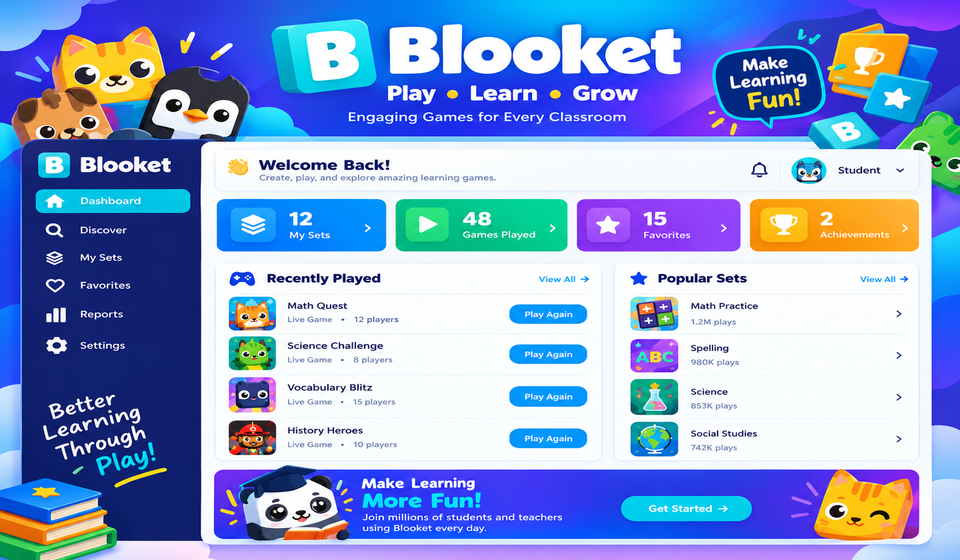

If you are a teacher or student, you have probably heard of dashboard blooket. It is the home screen you see after you sign in to Blooket, and it is where almost everything happens. You can find games, build question sets, host a live session, and track results from this one place.
This guide explains each part of the Blooket dashboard in plain language. By the end, you will know what every section does and how to get the most out of it.
What Is Dashboard Blooket?
Blooket is a game-based learning platform. Teachers use it to turn review questions into fun games, and students join with a simple code.
When people search for dashboard blooket, they usually want to reach their account home page. This is the control center of your Blooket account. It shows your saved sets, favorites, recent activity, and the tools you need to start a game.
Think of it as a classroom desk. Everything you need is laid out in one spot, so you do not waste class time searching for it.
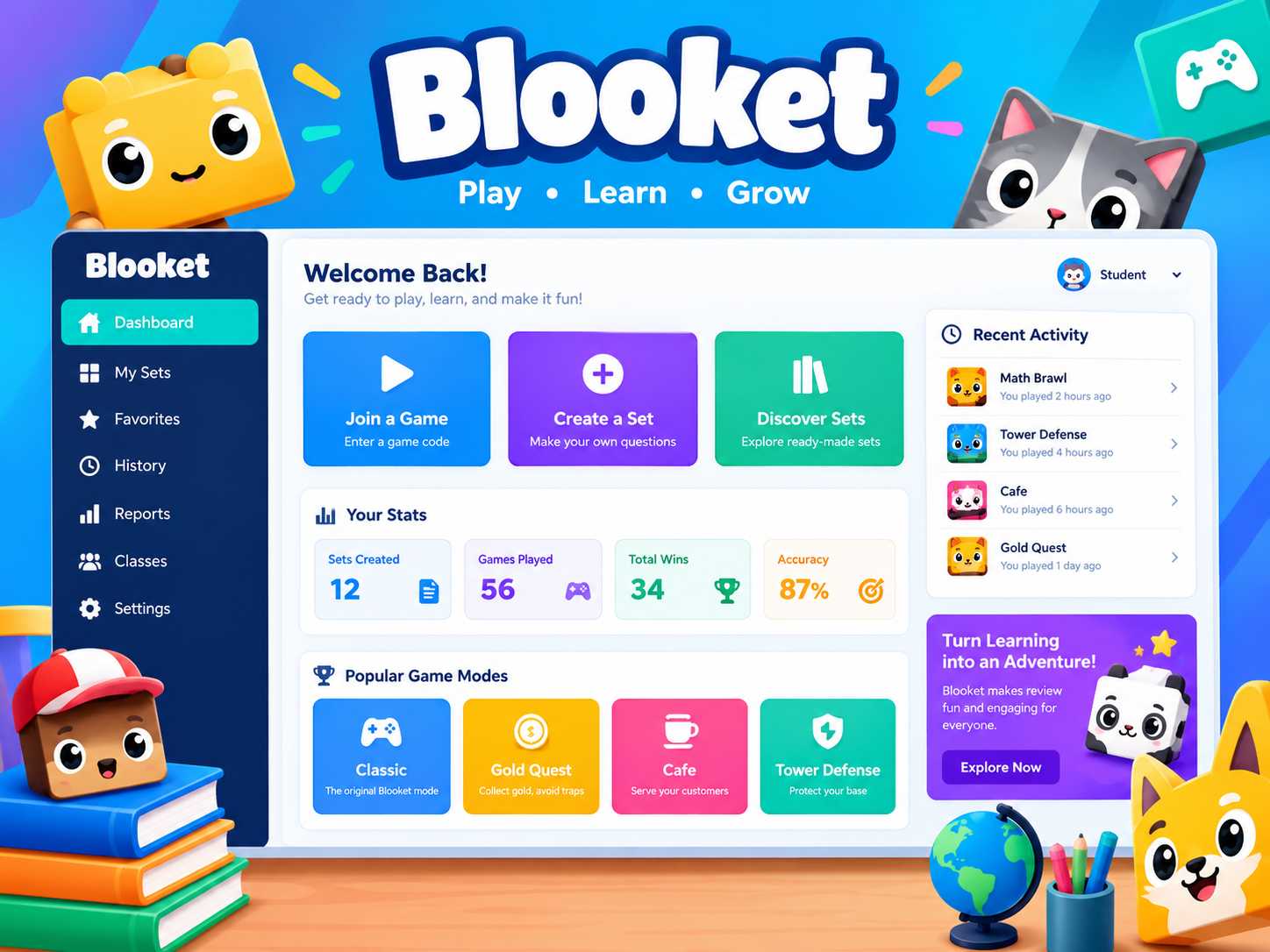
How to Access Your Blooket Dashboard
Getting to the Blooket dashboard only takes a minute. Follow these steps:
- Open the official Blooket website in your browser.
- Click the Login button at the top of the page.
- Enter your email and password, or use the Google sign-in option.
- After you log in, you land on your dashboard automatically.
If you do not have an account yet, choose the sign-up option first. Teachers and students can both create free accounts.
Do Students Need an Account to Play?
Students can join a live game without signing up. They only need a game code from the host. However, a free account lets them save progress, collect Blooks, and view their own stats.
Main Sections of the Blooket Dashboard
The layout may change slightly over time as Blooket updates its design. Still, the main areas stay familiar. Here is what you will usually find.
Discover
The Discover page lets you browse question sets made by other teachers. You can search by subject, grade level, or topic. This saves a lot of time if you need a quick math or science review.
Create
The Create section is where you build your own question sets. You can type questions by hand, add images, and set the time limit for each one. Many teachers prefer this section because they can match the questions to their own lessons.
My Sets
My Sets stores every question set you have made or saved. You can edit, duplicate, or delete them at any time. Keeping your sets organized here makes hosting much faster later.
Favorites
When you find a set you like, you can mark it as a favorite. The Favorites tab keeps these sets together, so you can reach your best resources in one click.
Stats
The Stats area shows how you or your students performed. It is useful for spotting weak topics. We will cover this in more detail below.
Market and Blooks
Students love the Market. They can spend tokens earned in games to open packs and win Blooks, which are the cute characters used as player avatars. This reward system is a big reason students stay motivated.
Settings
In Settings, you can update your username, change your password, and manage account details. It is a good idea to check this page now and then to keep your account secure.
How to Create a Question Set From Your Dashboard
Building a set is the most important skill to learn on dashboard blooket. Here is a simple process:
- Click Create from the dashboard menu.
- Give your set a clear title, such as “Grade 6 Fractions Review.”
- Add your first question and type the correct answer.
- Add three wrong answers to make a multiple-choice question.
- Set a time limit that fits the difficulty of the question.
- Save the set and repeat until you have enough questions.
Aim for 10 to 25 questions for a good game length. Shorter sets work well for warm-ups, while longer ones suit full review sessions.
Can You Import Questions Into Blooket?
Yes. Blooket has offered a spreadsheet import option, which lets you upload many questions at once instead of typing each one. This is helpful when you already have a list in Excel or Google Sheets. Check the Create page for the current import steps, because options can change.
How to Host a Game From the Blooket Dashboard
Once your set is ready, hosting is simple. Choose a set, click Host, and pick a game mode. Blooket then creates a unique join code.
Share that code with your students. They go to the Blooket join page, enter the code, pick a nickname, and the game begins.
What Are the Different Blooket Game Modes?
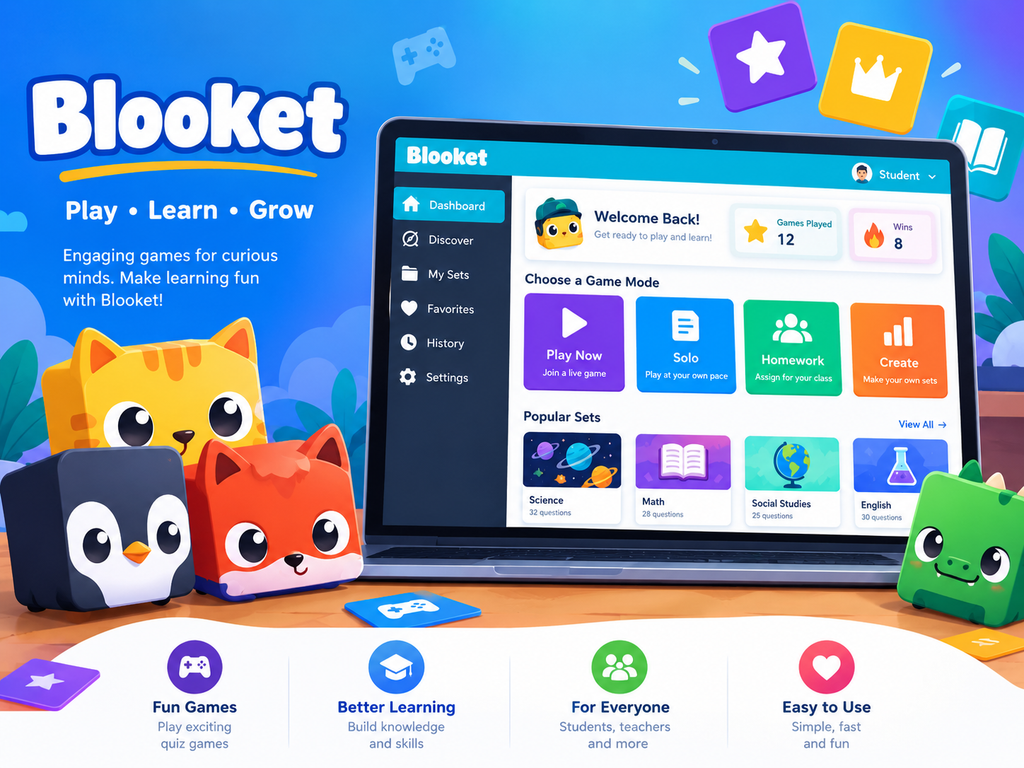
Blooket offers several modes, and each one changes how students use their questions. Popular ones include:
- Gold Quest: Players answer questions to collect gold and can steal from others.
- Tower Defense: Players build towers by answering correctly to stop incoming enemies.
- Cafe: Players serve customers and earn money by answering questions.
- Factory: Players build a factory and boost production with right answers.
- Crazy Kingdom: Players manage a kingdom and make choices that affect their score.
Some modes are better for live classroom play, while others suit homework. Try a few to see what your students enjoy most.
What Is the Difference Between Live Games and Homework Mode?
In a live game, everyone plays together at the same time while you watch the leaderboard. In homework mode, students play on their own schedule before a deadline. Homework mode is ideal when you want practice outside class hours.
Using Blooket Stats to Track Progress
One of the best parts of dashboard blooket is the reporting tools. After a game ends, you can review how the group performed.
Useful details often include:
- Overall accuracy for each question
- Which questions students missed most
- Individual student scores
- Time spent on each question
This information helps you decide what to reteach. For example, if most of the class misses the same question, that topic probably needs another explanation.
Students can also check their own results, so they know where to focus when studying.
Tips to Get More From Your Blooket Dashboard
A few simple habits can make your Blooket experience smoother:
- Name your sets clearly. A good title saves time when you have dozens of sets.
- Use favorites often. Save helpful sets from Discover so you can reuse them.
- Mix game modes. Changing modes keeps students from getting bored.
- Review stats after every game. Small adjustments add up over a term.
- Keep questions short. Clear wording helps students answer faster and avoids confusion.
Teachers who use these habits usually spend less time preparing and more time teaching.
Common Problems With Dashboard Blooket and How to Fix Them
Sometimes the Blooket dashboard does not load or behave as expected. Try these quick fixes.
Why Is My Blooket Dashboard Not Loading?
This is often caused by a slow connection or a cached page. Refresh the page, clear your browser cache, or try another browser. If the problem continues, check whether Blooket is experiencing an outage.
Why Can’t I Log In to Blooket?
Double-check your email and password first. If you signed up with Google, use the Google sign-in button instead of typing a password. You can also use the password reset option to create a new one.
Why Won’t Students Join My Game?
Make sure the game is still open and the code is typed correctly. Codes expire when a game ends, and some school networks block gaming sites. If that happens, ask your school’s IT team to allow Blooket.
Is Blooket Free?
Blooket has a free version that covers the basics, including creating sets and hosting games. There is also a paid plan called Blooket Plus, which adds extra features and perks. Pricing and features can change, so check the official site for the latest details before you upgrade.
FAQS
What is dashboard blooket used for?
Dashboard blooket is the main account page where you create question sets, browse games, host sessions, and view stats. It is the starting point for nearly everything you do on Blooket.
How do I find my Blooket dashboard after logging in?
You are taken there automatically after you sign in. If you ever leave it, click the home or dashboard link in the top menu to return.
Can students use the Blooket dashboard too?
Yes. Students with accounts can view their stats, manage their Blooks, and save favorite sets. Those without accounts can still join games using a code.
How many questions should a Blooket set have?
Between 10 and 25 questions works well for most classes. You can use more for longer review sessions.
Is Blooket safe for students?
Blooket is built for classroom use, and students join with nicknames. Teachers should still remind students to avoid sharing personal information and to choose appropriate usernames.
Can I edit a set after I have saved it?
Yes. Open My Sets from your dashboard, choose the set, and edit it whenever you need to.
Conclusion
Dashboard blooket is more than a simple login page. It is a complete toolkit for building question sets, hosting exciting games, and tracking student progress. Once you understand each section, from Discover and Create to Stats and Settings, you can run smooth, engaging review sessions with very little prep time.
Start by exploring the Blooket dashboard, build one small set, and host a quick game. After a few tries, the process becomes second nature, and your students will likely ask to play again.